 
(Alternative art proposals are welcome! Submit one through an Issue.)
# Saves Microsoft Stream videos for offline enjoyment
### v2.0 Release, codename _Hammer of DawnTM_
This release would not have been possible without the code and time contributed by two distinguished developers: [@lukaarma](https://github.com/lukaarma) and [@kylon](https://github.com/kylon). Thank you!
## What's new
- We now have a token cache so we can reuse access tokens. This really means that within one hour you need to perform the interactive browser login only once.
- We removed the dependency on `youtube-dl`.
- Getting to the HLS URL is dramatically more reliable as we dropped parsing the DOM for the video element in favor of calling the Microsoft Stream API
- Fixed access token lifetime bugs (you no longer get a 403 Forbidden midway though your download list)
- Fixed a wide variety of other bugs, maybe introduced a few new ones :)
## Disclaimer
Hopefully this doesn't break the end user agreement for Microsoft Stream. Since we're simply saving the HLS stream to disk as if we were a browser, this does not abuse the streaming endpoints. However i take no responsibility if either Microsoft or your Office 365 admins request a chat with you in a small white room.
## Prereqs
- **Node.js**: anything above v8.0 seems to work. A GitHub Action runs tests on all major Node versions on every commit.
- **npm**: Usually comes with Node.js, type `npm` in your terminal to check for its presence
- **ffmpeg**: a recent version (year 2019 or above), in `$PATH` or in the same directory as this README file (project root).
Destreamer takes a [honeybadger](https://www.youtube.com/watch?v=4r7wHMg5Yjg) approach towards the OS it's running on. We've successfully tested it on Windows, macOS and Linux.
## How to build
To build destreamer run the following commands, in order -
- `npm install`
- `npm run -s build`
## Usage
```
$ ./destreamer.sh
Options:
--help Show help [boolean]
--version Show version number [boolean]
--videoUrls, -i List of video urls [array]
--videoUrlsFile, -f Path to txt file containing the urls [string]
--username, -u [string]
--outputDirectory, -o The directory where destreamer will save your
downloads [default: videos] [string]
--outputDirectories, -O Path to a txt file containing one output directory
per video [string]
--noExperiments, -x Do not attempt to render video thumbnails in the
console [boolean] [default: false]
--simulate, -s Disable video download and print metadata information
to the console [boolean] [default: false]
--verbose, -v Print additional information to the console (use this
before opening an issue on GitHub)
[boolean] [default: false]
```
Make sure you use the right script (`.sh`, `.ps1` or `.cmd`) and escape char (if using line breaks) for your shell.
PowerShell uses a backtick [ **`** ] and cmd.exe uses a caret [ **^** ].
Download a video -
```sh
$ ./destreamer.sh -i "https://web.microsoftstream.com/video/VIDEO-1"
```
Download a video to a custom path -
```sh
$ ./destreamer.sh -i "https://web.microsoftstream.com/video/VIDEO-1" -o /Users/hacker/Downloads
```
Download two or more videos -
```sh
$ ./destreamer.sh -i "https://web.microsoftstream.com/video/VIDEO-1" \
"https://web.microsoftstream.com/video/VIDEO-2"
```
Download many videos but read URLs from a file -
```sh
$ ./destreame.sh -f list.txt
```
You can create a `.txt` file containing your video URLs, one video per line. The text file can have any name, followed by the `.txt` extension.
Passing `--username` is optional. It's there to make logging in faster (the username field will be populated automatically on the login form).
You can use an absolute path for `-o` (output directory), for example `/mnt/videos`.
## Expected output
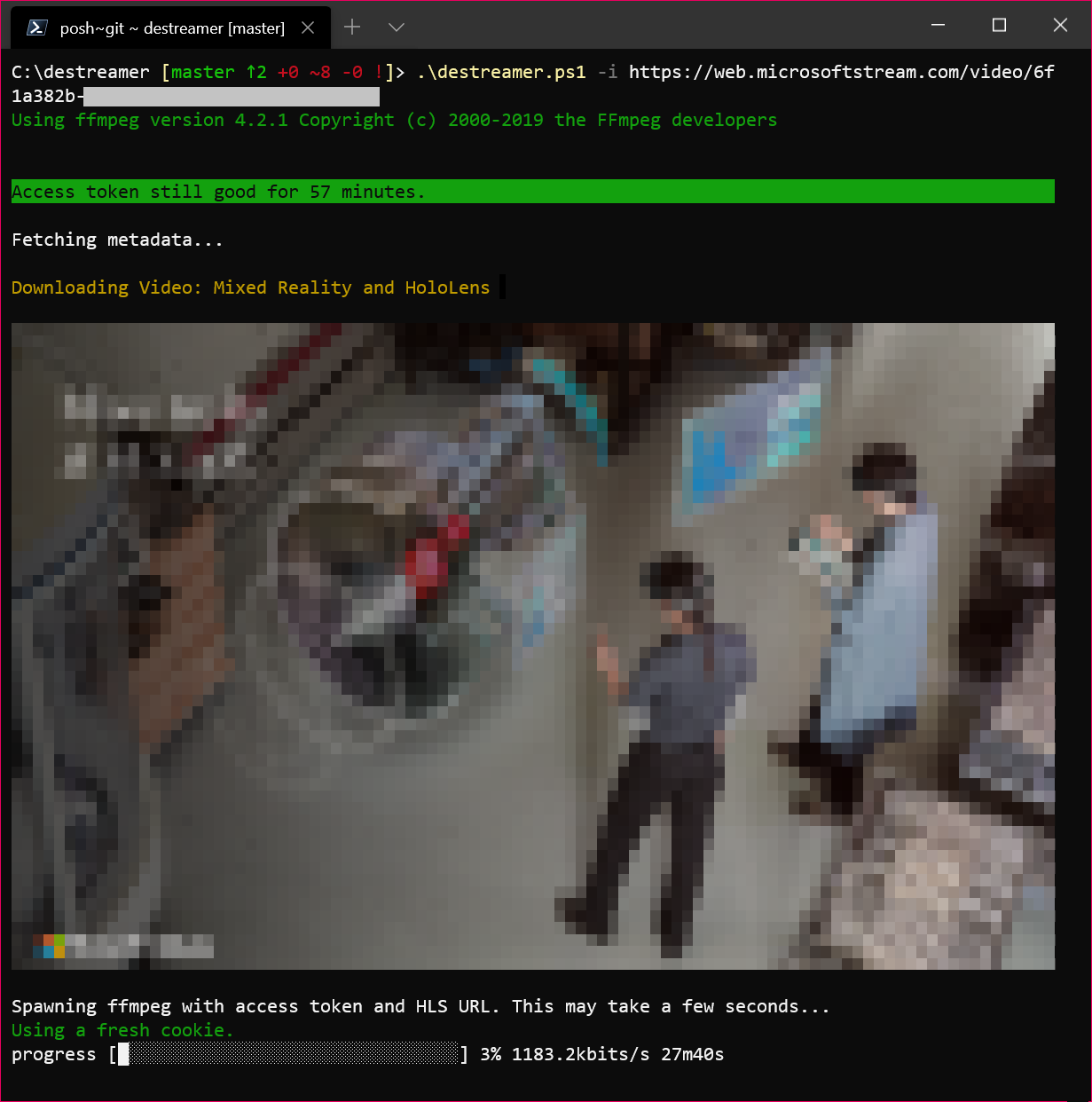
By default, downloads are saved under `videos/` unless specified by `-o` (output directory).
## Found a bug?
Please open an [issue](https://github.com/snobu/destreamer/issues) and we'll look into it.

(Alternative art proposals are welcome! Submit one through an Issue.)
# Saves Microsoft Stream videos for offline enjoyment
### v2.0 Release, codename _Hammer of DawnTM_
This release would not have been possible without the code and time contributed by two distinguished developers: [@lukaarma](https://github.com/lukaarma) and [@kylon](https://github.com/kylon). Thank you!
## What's new
- We now have a token cache so we can reuse access tokens. This really means that within one hour you need to perform the interactive browser login only once.
- We removed the dependency on `youtube-dl`.
- Getting to the HLS URL is dramatically more reliable as we dropped parsing the DOM for the video element in favor of calling the Microsoft Stream API
- Fixed access token lifetime bugs (you no longer get a 403 Forbidden midway though your download list)
- Fixed a wide variety of other bugs, maybe introduced a few new ones :)
## Disclaimer
Hopefully this doesn't break the end user agreement for Microsoft Stream. Since we're simply saving the HLS stream to disk as if we were a browser, this does not abuse the streaming endpoints. However i take no responsibility if either Microsoft or your Office 365 admins request a chat with you in a small white room.
## Prereqs
- **Node.js**: anything above v8.0 seems to work. A GitHub Action runs tests on all major Node versions on every commit.
- **npm**: Usually comes with Node.js, type `npm` in your terminal to check for its presence
- **ffmpeg**: a recent version (year 2019 or above), in `$PATH` or in the same directory as this README file (project root).
Destreamer takes a [honeybadger](https://www.youtube.com/watch?v=4r7wHMg5Yjg) approach towards the OS it's running on. We've successfully tested it on Windows, macOS and Linux.
## How to build
To build destreamer run the following commands, in order -
- `npm install`
- `npm run -s build`
## Usage
```
$ ./destreamer.sh
Options:
--help Show help [boolean]
--version Show version number [boolean]
--videoUrls, -i List of video urls [array]
--videoUrlsFile, -f Path to txt file containing the urls [string]
--username, -u [string]
--outputDirectory, -o The directory where destreamer will save your
downloads [default: videos] [string]
--outputDirectories, -O Path to a txt file containing one output directory
per video [string]
--noExperiments, -x Do not attempt to render video thumbnails in the
console [boolean] [default: false]
--simulate, -s Disable video download and print metadata information
to the console [boolean] [default: false]
--verbose, -v Print additional information to the console (use this
before opening an issue on GitHub)
[boolean] [default: false]
```
Make sure you use the right script (`.sh`, `.ps1` or `.cmd`) and escape char (if using line breaks) for your shell.
PowerShell uses a backtick [ **`** ] and cmd.exe uses a caret [ **^** ].
Download a video -
```sh
$ ./destreamer.sh -i "https://web.microsoftstream.com/video/VIDEO-1"
```
Download a video to a custom path -
```sh
$ ./destreamer.sh -i "https://web.microsoftstream.com/video/VIDEO-1" -o /Users/hacker/Downloads
```
Download two or more videos -
```sh
$ ./destreamer.sh -i "https://web.microsoftstream.com/video/VIDEO-1" \
"https://web.microsoftstream.com/video/VIDEO-2"
```
Download many videos but read URLs from a file -
```sh
$ ./destreame.sh -f list.txt
```
You can create a `.txt` file containing your video URLs, one video per line. The text file can have any name, followed by the `.txt` extension.
Passing `--username` is optional. It's there to make logging in faster (the username field will be populated automatically on the login form).
You can use an absolute path for `-o` (output directory), for example `/mnt/videos`.
## Expected output

By default, downloads are saved under `videos/` unless specified by `-o` (output directory).
## Found a bug?
Please open an [issue](https://github.com/snobu/destreamer/issues) and we'll look into it.